Is your Android phone behaving strangely? Is it showing random ads, opening apps on its own, overheating without reason, or draining battery faster than usual? These are classic signs of malware or a virus on your Android phone. While Android is generally a secure platform, millions of Indian users unknowingly install malicious apps every year — through fake APK files, unofficial app stores, or phishing links on WhatsApp.
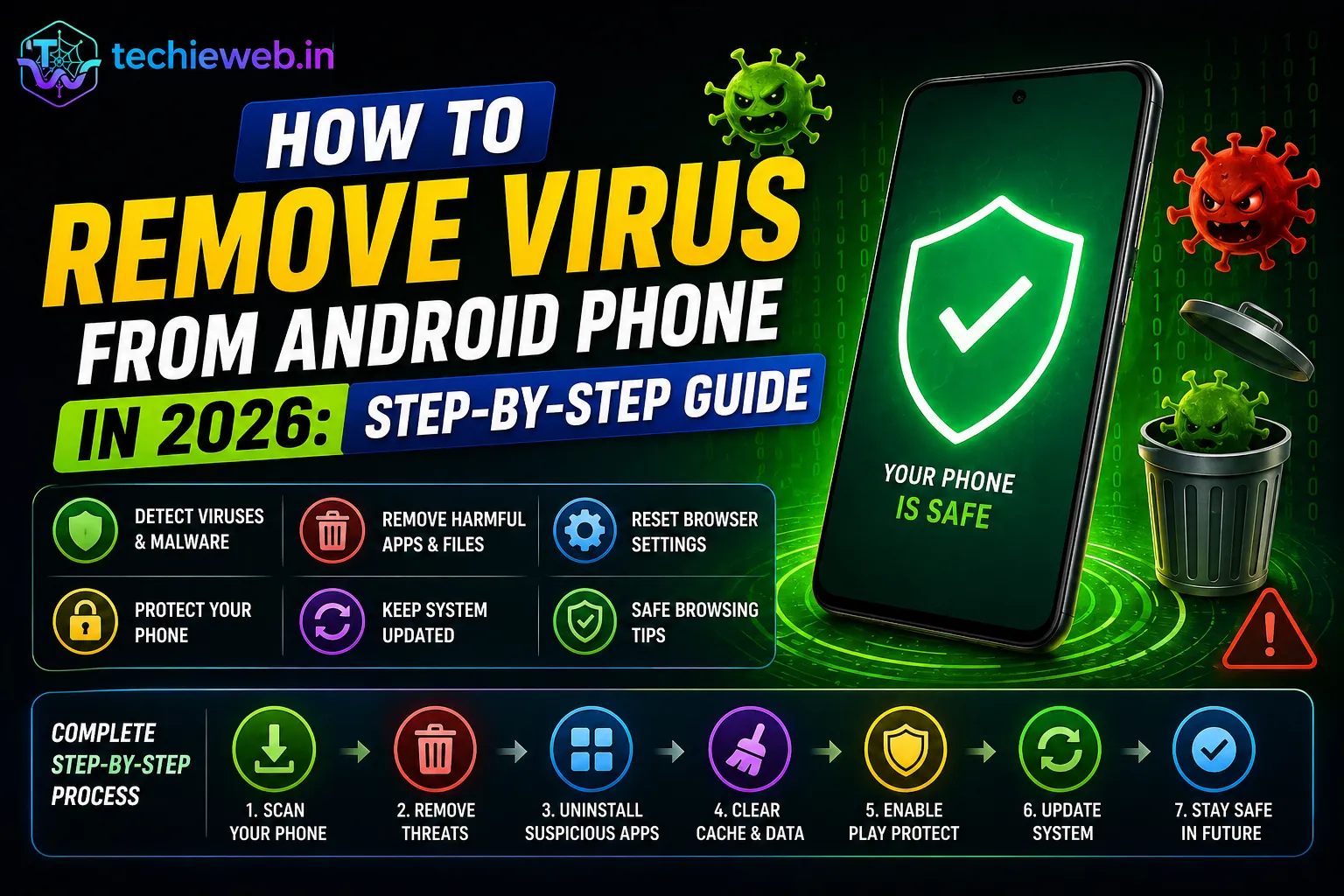
The good news is that removing a virus or malware from an Android phone is completely possible — often without a factory reset. TechieWeb.in walks you through a step-by-step guide to detect and remove virus from android phone.
Contents
- 1 Signs Your Android Phone Has a Virus or Malware
- 2 Step 1: Restart Your Phone in Safe Mode
- 3 Step 2: Identify and Uninstall Suspicious Apps
- 4 Step 3: Run a Trusted Malware Scanner
- 5 Step 4: Clear Browser Cache and Data
- 6 Step 5: Remove Device Administrator Permissions from Suspicious Apps
- 7 Step 6: Disable “Install Unknown Apps” Permission
- 8 Step 7: Update Android OS and All Apps
- 9 Step 8: Factory Reset as a Last Resort
- 10 How to Prevent Viruses on Your Android Phone
- 11 Frequently Asked Questions: Remove virus from Android phone
- 12 Conclusion
Signs Your Android Phone Has a Virus or Malware
Not every phone problem is caused by malware, but here are the warning signs that something suspicious may be running on your device:
- Random pop-up ads appearing outside of any app — even on the home screen or lock screen
- Apps you did not install are appearing in your app drawer
- Battery draining very fast without heavy usage
- Phone overheating even during light use or standby
- Mobile data usage is spiking abnormally without you downloading anything
- Phone is becoming slow and laggy suddenly after installing a new app
- Browser redirecting to random websites automatically
- Calls or messages are being sent from your phone without your knowledge
If you notice 2 or more of these signs, follow the steps below immediately.
Step 1: Restart Your Phone in Safe Mode
Safe Mode boots your Android phone with only the essential system apps running — all third-party apps you installed are temporarily disabled. This is helpful because it lets you confirm whether a third-party app is causing the problem. If your phone runs normally in Safe Mode (no ads, no slowdown), it means the culprit is a downloaded app.
How to enter Safe Mode (most Android phones):
- Press and hold the Power button until you see the power menu.
- Long-press the Power Off option for 2–3 seconds.
- A popup will appear asking if you want to reboot to Safe Mode. Tap OK.
- Your phone will restart with “Safe Mode” written at the bottom of the screen.
To exit Safe Mode, simply restart your phone normally.
Step 2: Identify and Uninstall Suspicious Apps
While in Safe Mode, go through your installed apps and look for anything suspicious. Common signs of a malicious app include:
- Apps you do not remember installing
- Apps with generic names like “System Service”, “Phone Manager”, “Battery Optimizer”
- Apps that ask for excessive permissions (camera, microphone, contacts, SMS) that do not match their stated purpose
- Apps with no icon visible on the home screen or app drawer but visible in Settings → Apps
How to uninstall: Go to Settings → Apps → See All Apps. Find the suspicious app, tap on it, and select Uninstall. If the Uninstall button is greyed out, see Step 5 to remove Device Admin permission first.
A very common source of malware in India is fake “loan apps” and “battery saver” apps that are distributed via WhatsApp links. If you have installed any such apps recently, uninstall them immediately.
Step 3: Run a Trusted Malware Scanner
After uninstalling suspicious apps, run a full scan with a reputed antivirus or malware scanner. Do not install random antivirus apps — many “antivirus” apps on the Play Store are themselves malware. Stick to these trusted options:
- Malwarebytes for Android (free, highly recommended) — one of the most trusted malware scanners globally
- Bitdefender Antivirus Free — lightweight and effective
- Google Play Protect — built into every Android phone, runs automatic scans
To run a Google Play Protect scan: Open the Play Store → tap your Profile → Play Protect → Scan. This will scan all installed apps for malware.
Install Malwarebytes from the official Play Store (not from any third-party site), run a full scan, and remove anything it flags.
Step 4: Clear Browser Cache and Data
Many browser hijack attacks — where your browser keeps redirecting to unwanted websites or showing pop-up ads — are caused by malicious browser extensions or corrupted browser cache data.
How to clear Chrome browser data:
- Open Chrome → tap the three dots (⋮) → Settings → Privacy and Security → Clear Browsing Data
- Select All Time as the time range
- Check Browsing History, Cookies, Cached Images
- Tap Clear Data
Also check for suspicious extensions: Chrome → Settings → Extensions. Remove any extension you do not recognise.
Step 5: Remove Device Administrator Permissions from Suspicious Apps
Some malicious apps grant themselves “Device Administrator” permissions, which prevent you from uninstalling them normally. This is why some suspicious apps show a greyed-out Uninstall button.
How to remove Device Admin permissions:
- Go to Settings → Security → Device Admin Apps (name may vary by phone brand)
- Look for any app in this list that you do not recognise or did not intentionally set as a device administrator
- Tap on it and select Deactivate
- Now go back to Settings → Apps and uninstall the app normally
Legitimate apps that normally use Device Admin permission include MDM (Mobile Device Management) software used by companies, some parental control apps, and Android’s Find My Device feature. If you see an app in this list you do not recognise, remove it immediately.
Step 6: Disable “Install Unknown Apps” Permission
One of the most common ways malware gets onto Indian Android phones is through APK files downloaded outside the Play Store — from WhatsApp links, websites, or unofficial app stores. Make sure this setting is disabled.
How to disable: Go to Settings → Security → Install Unknown Apps. You will see a list of apps that have been granted permission to install APKs. Disable this permission for all apps, especially browsers like Chrome and file managers like ES File Explorer.
From now on, only install apps from the official Google Play Store. While the Play Store is not perfect, it has much better security checks than unknown sources.
Step 7: Update Android OS and All Apps
Security vulnerabilities in outdated Android versions and apps are a common entry point for malware. After cleaning your phone, update everything:
- Update Android: Settings → About Phone → System Update → Check for Updates
- Update all apps: Play Store → Profile → Manage Apps and Device → Update All
Also update your browser (Chrome or whichever you use) as browsers are a frequent attack vector for malware on mobile devices.
Step 8: Factory Reset as a Last Resort
If you have followed all the steps above and your phone is still showing signs of infection, a factory reset is the most reliable way to completely clean your device. A factory reset wipes everything and restores the phone to its original state.
Before factory resetting:
- Back up your contacts to Google Contacts
- Back up your photos to Google Photos or a computer
- Note down all the apps you need to reinstall
- Do NOT back up your apps themselves — only back up data, as backing up infected apps will re-infect your phone
How to factory reset: Go to Settings → General Management → Reset → Factory Data Reset → Reset. Confirm the action and wait for the process to complete.
After factory reset, set up your phone fresh and only install apps from the Play Store.
How to Prevent Viruses on Your Android Phone
Prevention is always better than cure. Here are the most important habits to keep your Android phone virus-free:
- Only install apps from Play Store: Avoid downloading APK files from WhatsApp, Telegram, or unknown websites — even if they are sent by friends.
- Check app permissions before installing: If a flashlight app asks for access to your contacts and SMS, that is a red flag. Do not install it.
- Do not click on suspicious links: Be very cautious about links shared on WhatsApp, especially links that promise free recharges, lottery winnings, or government schemes.
- Keep Play Protect enabled: Go to Play Store → Play Protect and make sure it is turned on and set to scan for threats automatically.
- Use strong screen lock: A good PIN, pattern, or fingerprint lock prevents physical access to your phone by others.
- Be careful on public Wi-Fi: Avoid logging into banking apps or entering passwords when connected to public Wi-Fi hotspots in cafes, malls, or railway stations.
Frequently Asked Questions: Remove virus from Android phone
Can Android phones get viruses from websites?
Yes. Visiting malicious websites can trigger drive-by downloads that install malware on your phone, especially if you tap on any popup or notification on those sites. Always use a trusted browser with safe browsing enabled and avoid clicking on suspicious links.
Is Google Play Protect good enough to protect my Android phone?
Google Play Protect provides a basic level of protection against known malware. It is good for casual users who only install apps from the Play Store. For higher security — especially if you have banking apps or sensitive data on your phone — using an additional scanner like Malwarebytes periodically is recommended.
Can malware steal my UPI PIN or banking passwords?
Yes. Certain types of malware called keyloggers or screen recorders can capture what you type — including UPI PINs, banking passwords, and OTPs. This is why you should never install unknown apps and should regularly scan your phone. If you suspect your banking credentials are compromised, change your passwords and UPI PIN immediately and alert your bank.
How do I know if my phone has a keylogger?
Keyloggers are hard to detect manually. Signs include unexpected battery drain, unusual data usage, and the phone feeling warm during idle periods. Run a Malwarebytes full scan to detect most known keylogger apps.
Will factory reset remove all viruses from my Android phone?
Yes, a factory reset removes all data, apps, and malware from your phone’s internal storage. However, malware stored on an external SD card will not be removed. If you suspect your SD card is infected, format it separately through Settings → Storage → SD Card → Format.
Conclusion
Removing a virus from an Android phone is not as scary as it sounds. In most cases, simply identifying and uninstalling the malicious app in Safe Mode, running a Malwarebytes scan, and updating your software will solve the problem completely without needing a factory reset.
The most important lesson from this guide is prevention. Never install APK files from outside the Play Store, never click on suspicious WhatsApp links, and always check app permissions before installing. These three habits alone will protect you from 95% of Android malware threats.
Found this guide helpful? Share it with your family and friends — especially those who may be less tech-savvy. And for more tips on staying safe online, visit TechieWeb.in — your trusted tech resource from India.