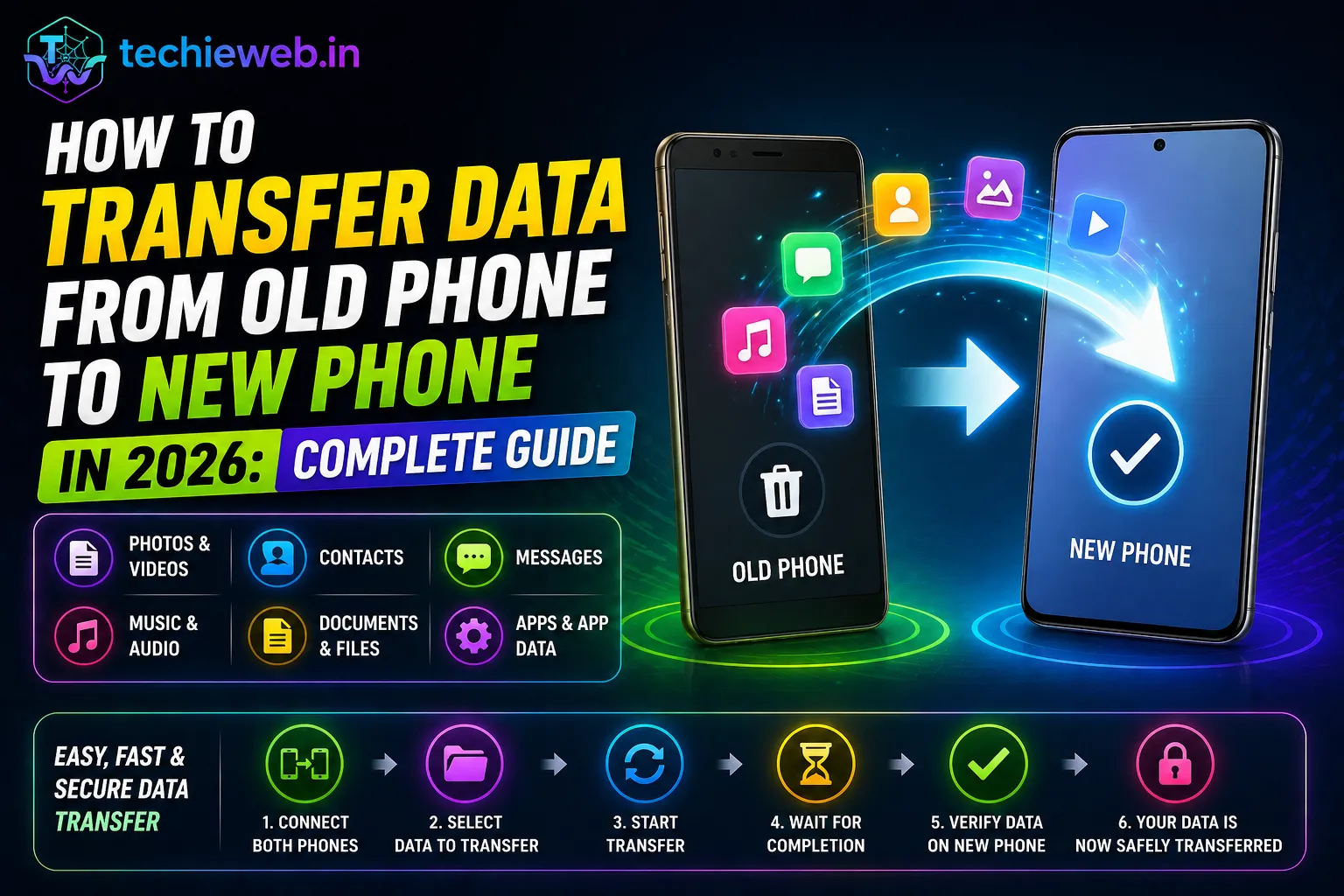
Getting a new phone is exciting — but the thought of losing all your photos, contacts, WhatsApp chats, and app data can be stressful. Fortunately, transferring data from your old Android phone to a new one in 2026 is easier than ever. With the right tools and a step-by-step approach, you can move everything without losing a single contact or photo.
This guide from TechieWeb.in covers every method — from Google’s built-in tools to WhatsApp chat transfer — so you can make a smooth, stress-free switch to your new phone. Transfer Data from Old Phone to New Phone
Contents
- 1 Before You Begin: Pre-Transfer Checklist
- 2 Method 1: Transfer Using Google Account — Easiest Method
- 3 Method 2: Transfer Using USB Cable — Fastest for Large Files
- 4 Method 3: How to Transfer WhatsApp Chats to New Phone
- 5 How to Transfer All Photos and Videos
- 6 How to Transfer Contacts
- 7 How to Reinstall Apps Quickly on New Phone
- 8 Special Guide: Samsung to Samsung Transfer (Smart Switch)
- 9 Frequently Asked Questions: Transfer Data from Old Phone to New Phone
- 10 Conclusion
Before You Begin: Pre-Transfer Checklist
Before starting the transfer process, complete these steps to ensure nothing is missed:
- Charge both phones to at least 80%
- Back up your old phone to Google Drive: Settings → System → Backup → Back Up Now
- Note down important passwords, Wi-Fi passwords, and 2FA codes you will need on the new phone
- Make sure your Google account is signed in on the old phone
- Back up WhatsApp chats to Google Drive: WhatsApp → Settings → Chats → Chat Backup → Back Up Now
- Sync your contacts: Settings → Accounts → Google → Sync Contacts
Method 1: Transfer Using Google Account — Easiest Method
This is the simplest method for most Indian Android users and requires no cables or third-party apps. Google’s built-in backup system automatically saves your contacts, app list, Wi-Fi passwords, call history, and device settings to the cloud.
Step 1: On your old phone, go to Settings → System → Backup and make sure Google Backup is enabled. Tap Back Up Now to take a fresh backup.
Step 2: Turn on your new phone and go through the initial setup. When asked to set up with a Google account, sign in with the same Google account you used on your old phone.
Step 3: During setup, you will see an option to “Restore from backup.” Select your old phone’s most recent backup and tap Restore.
Step 4: Wait for the restoration to complete. Your contacts, Wi-Fi passwords, app list, and some app data will be restored automatically. Apps will begin downloading from the Play Store automatically in the background.
What transfers: Contacts, Wi-Fi passwords, call history, app list, app data (varies by app), display settings, accessibility settings.
What does NOT transfer: Photos and videos (use Google Photos), WhatsApp chats (separate process), internal storage files.
Method 2: Transfer Using USB Cable — Fastest for Large Files
If you want to transfer large amounts of photos, videos, and files quickly, using a USB cable to connect both phones is the fastest method.
You will need: A USB OTG adapter (available for ₹99 to ₹199 on Amazon/Flipkart) and a USB cable.
- Connect your old phone to the new phone using the OTG adapter and USB cable.
- On the old phone, when prompted, select File Transfer mode.
- The old phone will appear as a storage device on the new phone’s file manager.
- Open the file manager on the new phone, navigate to the old phone’s storage, and copy files to the new phone’s internal storage.
Alternatively, many newer phones from Samsung and OnePlus include their own data transfer apps (Samsung Smart Switch, OnePlus Switch) that handle this process automatically when both phones are connected.
Method 3: How to Transfer WhatsApp Chats to New Phone
WhatsApp chat transfer requires specific steps and is separate from the general Google backup. Here is the most reliable method:
Step 1 — Back up on old phone: Open WhatsApp → Settings → Chats → Chat Backup → Back Up Now. Make sure the backup is saved to Google Drive with your Google account.
Step 2 — Install WhatsApp on new phone: Download WhatsApp from the Play Store on your new phone.
Step 3 — Verify your number: When WhatsApp asks for your phone number, enter the same number you used on your old phone. Verify with the OTP sent to that number.
Step 4 — Restore backup: WhatsApp will detect the backup on Google Drive and ask if you want to restore it. Tap Restore and wait for the process to complete. All your chats, photos, and videos will be restored.
Important: The backup on Google Drive must be from the same Google account you sign in with on the new phone. If you use a different Google account, the backup will not be found.
How to Transfer All Photos and Videos
Google Photos is the easiest way to transfer all your photos and videos to a new phone. If you have Google Photos backup enabled on your old phone, all your photos are already safely stored in the cloud.
Step 1: On your old phone, open Google Photos → Profile → Photos Settings → Backup → ensure Backup is enabled and tap Back Up Device Storage to upload all existing photos.
Step 2: On your new phone, sign into Google Photos with the same account. All your photos will be available immediately.
Note: Google provides 15GB of free Google One storage. If your photos exceed 15GB, you will need to purchase additional storage or selectively manage what is backed up.
How to Transfer Contacts
If you synced your contacts to Google on your old phone, they will automatically appear on your new phone when you sign in with the same Google account. To verify:
- On your old phone: Settings → Accounts → Google → Account Sync → Enable Contacts Sync
- On your new phone: Settings → Accounts → Google → sign in → Contacts will sync automatically
If contacts are saved on your SIM card instead of Google, export them: Contacts app → Import/Export → Export to .vcf file → Save to Google Drive or phone storage. Then transfer the .vcf file to your new phone and import.
How to Reinstall Apps Quickly on New Phone
When you restore from Google Backup, your apps will reinstall automatically. But if you want to manually reinstall selected apps, Google Play Store keeps a record of all apps you have ever installed.
Go to Play Store → Profile → Manage Apps and Device → Manage. Tap Installed, change to Not Installed, and you will see every app from your old phone. Select the ones you want and install them all at once.
Special Guide: Samsung to Samsung Transfer (Smart Switch)
Samsung phones have a built-in app called Smart Switch that makes Samsung-to-Samsung transfers extremely smooth — even transferring app data, settings, and SMS messages that Google Backup does not cover.
- On both phones, open Smart Switch (comes pre-installed on all Samsung phones, or download from Play Store).
- On the old phone, tap Send Data. On the new phone, tap Receive Data.
- Connect both phones with a USB cable or use wireless transfer via Wi-Fi Direct.
- Select what to transfer and tap Transfer. Smart Switch will migrate everything including SMS messages, call logs, and app data.
Frequently Asked Questions: Transfer Data from Old Phone to New Phone
Can I transfer data from Android to Android without internet?
Yes. You can use a USB OTG cable to transfer files directly between two Android phones without an internet. For apps and contacts, Smart Switch (Samsung) or similar manufacturer tools work over Wi-Fi Direct without needing mobile data.
Will my WhatsApp OTP work on the new phone?
Yes. Your WhatsApp is linked to your phone number, not your device. As long as your SIM is in the new phone (or you can receive an OTP on your old number), WhatsApp verification will work on the new phone.
How long does data transfer take?
A Google backup restore typically takes 20–60 minutes depending on the amount of data and internet speed. USB cable transfer of photos and files depends on file size — transferring 10GB of photos takes approximately 10–20 minutes.
What data cannot be transferred to a new phone?
App-specific data stored locally (like game saves that are not backed up to cloud) may not transfer. Banking app data, payment app data, and some secured apps require re-verification on the new device for security reasons.
Conclusion
Switching to a new Android phone in 2026 is much easier than it was a few years ago, thanks to Google’s built-in backup tools and manufacturer-specific apps like Samsung Smart Switch. By following this guide step-by-step, you can transfer all your important data — contacts, photos, WhatsApp chats, apps — without losing anything.
The most important step is to back up your old phone before you begin. Start with the Google Backup, then back up WhatsApp separately, and you will have everything protected before the transfer begins. Good luck with your new phone and visit TechieWeb.in for more helpful tech guides!