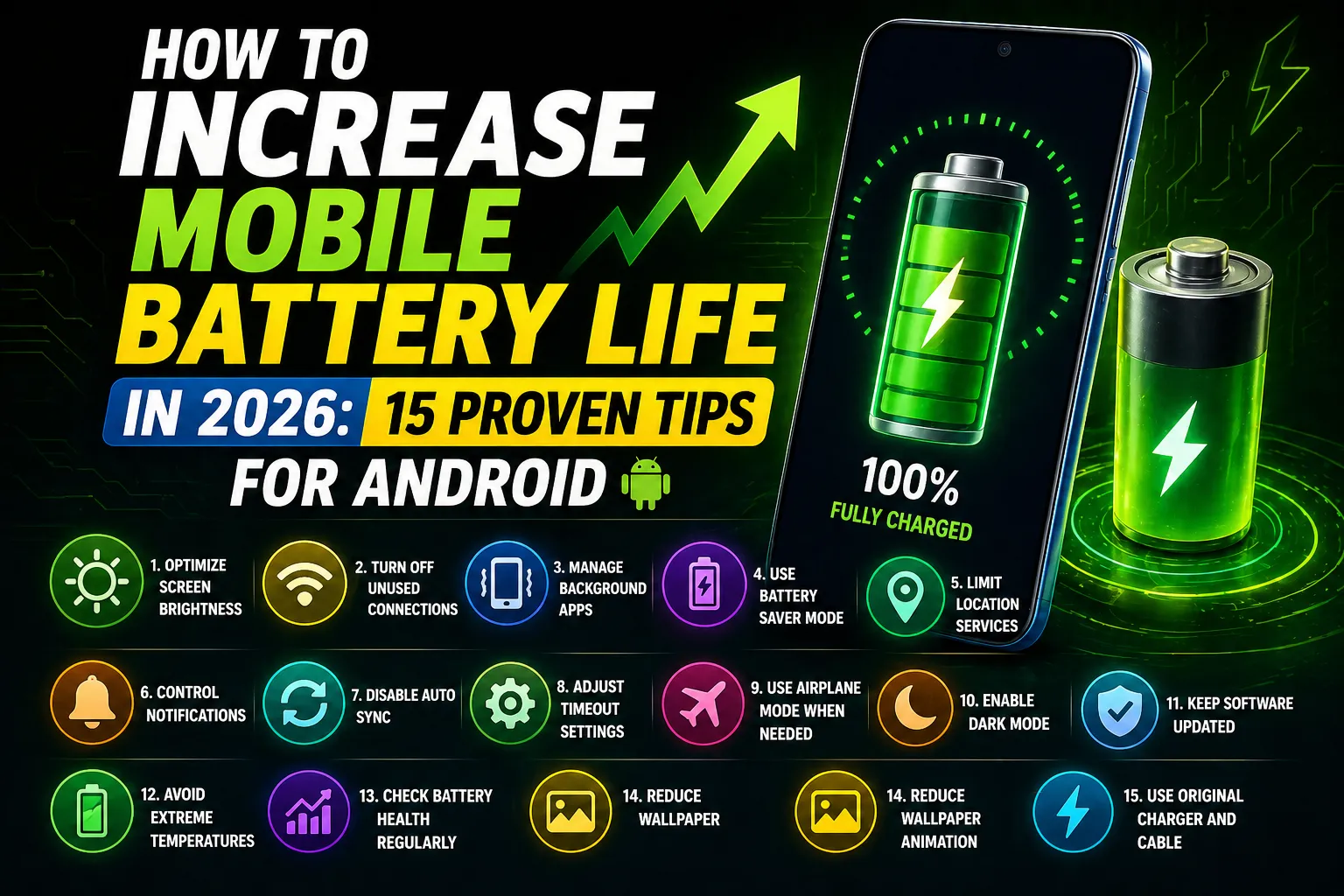
Increase mobile battery. Nothing is more frustrating than your phone battery dying in the middle of the day — especially when you are at college, travelling, or in an important meeting. If your Android phone’s battery is draining faster than it used to, you are not alone. This is one of the most common complaints from Indian smartphone users in 2026.
The good news is that most battery drain problems are caused by software settings, not hardware failure. By making a few simple changes, you can significantly increase your mobile battery life without spending a single rupee. TechieWeb.in brings you 15 proven tips to save battery on your Android phone in 2026.
Contents
- 1 Why Does Your Phone Battery Drain So Fast?
- 2 Tip 1: Reduce Screen Brightness
- 3 Tip 2: Use Dark Mode
- 4 Tip 3: Reduce Screen Timeout
- 5 Tip 4: Turn Off Always-On Display
- 6 Tip 5: Disable Location for Unused Apps
- 7 Tip 6: Turn Off Bluetooth and Wi-Fi When Not Needed
- 8 Tip 7: Enable Battery Saver Mode
- 9 Tip 8: Restrict Background App Activity
- 10 Tip 9: Disable Unnecessary Notifications
- 11 Tip 10: Keep Apps and Android Updated
- 12 Tip 11: Check Battery Usage by App
- 13 Tip 12: Avoid Extreme Temperatures
- 14 Tip 13: Use Adaptive Battery Feature
- 15 Tip 14: Charge Your Phone the Right Way
- 16 Tip 15: Replace the Battery If Nothing Else Works
- 17 Frequently Asked Questions: Increase mobile battery
- 18 Conclusion
Why Does Your Phone Battery Drain So Fast?
Before fixing the problem, it helps to understand what is causing it. The most common battery drain culprits on Android phones are:
- High screen brightness: The display is the single biggest battery consumer on any smartphone — often consuming 30–40% of total battery.
- Background apps: Apps running in the background continuously use CPU, RAM, and network connections, all of which drain battery.
- Location services: GPS and location tracking are extremely battery-intensive, especially when multiple apps are accessing your location simultaneously.
- Poor network signal: When your phone has weak 4G or 5G signal, it constantly searches for a stronger connection, which uses significantly more battery than being on a strong signal.
- Ageing battery: Lithium-ion batteries degrade over time. A 2-year-old battery holds only 80% of its original capacity, meaning your phone dies sooner even with the same usage patterns.
- Rogue apps: Some apps are poorly coded and consume excessive battery even when you are not using them.
Tip 1: Reduce Screen Brightness
This is the most impactful single change you can make to increase your mobile battery life. The display is the biggest power consumer on your phone. Reducing brightness from 100% to 50% can extend your battery life by 20–30%.
Enable Auto-Brightness (adaptive brightness) — your phone will automatically reduce brightness in low-light conditions and increase it outdoors. Go to Settings → Display → Adaptive Brightness and turn it on. Also consider manually keeping brightness at 40–60% indoors — it is perfectly comfortable for most activities.
Tip 2: Use Dark Mode
If your phone has an AMOLED display (common on Samsung, OnePlus, and premium Redmi/Realme models), switching to Dark Mode can save significant battery. AMOLED screens light up pixels individually — black pixels are completely turned off, consuming zero power. Studies show Dark Mode can save 15–30% battery on AMOLED screens.
Enable Dark Mode: Go to Settings → Display → Dark Mode. You can also schedule it to turn on automatically at sunset.
Note: Dark Mode saves battery on AMOLED displays only. On LCD displays (most budget phones), Dark Mode does not save significant battery but is still easier on your eyes in low light.
Tip 3: Reduce Screen Timeout
Screen timeout is how long your screen stays on after you stop touching it. Many users keep this set to 2–5 minutes, meaning the screen stays on wasting battery whenever you put your phone down. Set it to 30 seconds or 1 minute maximum.
Go to Settings → Display → Screen Timeout and change it to 30 seconds or 1 minute.
Tip 4: Turn Off Always-On Display
Always-On Display (AOD) shows the time, date, and notifications on your screen even when the phone is locked. While convenient, AOD keeps your display partially active 24/7, which drains battery significantly — especially overnight.
Disable AOD: Go to Settings → Lock Screen → Always-On Display and turn it off, or set it to show only when you tap the screen.
Tip 5: Disable Location for Unused Apps
Many apps — food delivery, shopping, social media — request “Always On” location access. This means they track your location constantly, even when you are not using the app. This is a major battery drain.
Audit your app location permissions: Go to Settings → Location → App Permissions. For most apps, change location access from “Always Allow” to “Only While Using App” or “Deny”. Only navigation apps like Google Maps actually need location access at all times.
Tip 6: Turn Off Bluetooth and Wi-Fi When Not Needed
Bluetooth and Wi-Fi radios consume battery even when you are not actively using them — Bluetooth continuously scans for nearby devices and Wi-Fi scans for available networks. When you leave the house or are in an area with no Wi-Fi, turn off Wi-Fi. When you are not using Bluetooth earbuds or speakers, turn off Bluetooth.
Quick toggle: Swipe down the notification panel and tap the Wi-Fi and Bluetooth icons to turn them off. This small habit adds 10–15% extra battery life over the course of a day.
Tip 7: Enable Battery Saver Mode
Android’s built-in Battery Saver mode is one of the most effective tools to extend battery life when you are running low. It reduces background activity, limits location access, lowers screen brightness, and throttles some performance to save power.
Enable Battery Saver: Go to Settings → Battery → Battery Saver and turn it on. You can also set it to automatically activate when battery reaches 20% or 15%.
Many Indian phone brands like Redmi, Realme, and Vivo have their own enhanced battery saver modes (called Ultra Battery Saver or Super Power Saving Mode) that are even more aggressive and can give you several hours of standby on just a few percent battery.
Tip 8: Restrict Background App Activity
Background app activity is one of the biggest hidden battery drains on Android. Apps that refresh their content in the background — news apps, email clients, social media — consume CPU and network resources even when you are not using them.
Restrict background activity: Go to Settings → Apps → [App Name] → Battery → Restrict Background Activity. Do this for apps you do not need live notifications from — like shopping apps, news aggregators, and games.
Tip 9: Disable Unnecessary Notifications
Every time an app sends a notification, it wakes up your screen and processor briefly. If you have 20 apps sending notifications throughout the day, those constant wake-ups add up to significant battery drain.
Go through your notification settings and disable notifications for apps you do not need immediate updates from. Go to Settings → Notifications → App Notifications and turn off notifications for non-essential apps like games, promotional apps, and news aggregators.
Tip 10: Keep Apps and Android Updated
App developers regularly release updates that fix bugs — including bugs that cause excessive battery drain. An outdated app may have a memory leak or inefficient code that drains your battery without you knowing.
Keep all your apps updated via the Google Play Store and keep your Android OS updated via Settings → About Phone → System Update. This is one of the easiest and most overlooked ways to improve battery life.
Tip 11: Check Battery Usage by App
Android has a built-in tool that shows you exactly which apps are consuming the most battery. This helps you identify rogue apps that are draining power unnecessarily.
Go to Settings → Battery → Battery Usage. You will see a list of apps ranked by battery consumption. If an app you rarely use is near the top of this list, consider uninstalling it or restricting its background activity.
For more detailed battery analysis, install the free app AccuBattery from the Play Store. It gives you real-time battery health information, charging history, and detailed usage breakdowns.
Tip 12: Avoid Extreme Temperatures
Lithium-ion batteries are sensitive to temperature. Extreme heat — like leaving your phone in direct sunlight, on a hot dashboard, or under a pillow while charging — degrades battery health permanently over time. Extreme cold also reduces temporary battery performance.
In India, where summers can be extremely hot, this is especially important. Never leave your phone in a parked car in summer, avoid using it while it is in direct sunlight for extended periods, and never charge your phone under a pillow or blanket.
Tip 13: Use Adaptive Battery Feature
Android’s Adaptive Battery feature uses machine learning to predict which apps you use frequently and restricts battery usage for apps you rarely open. Over time, it learns your usage patterns and becomes more effective.
Enable it: Go to Settings → Battery → Adaptive Battery and turn it on. Give it a week or two to learn your patterns — you should notice gradual battery improvement over time.
Tip 14: Charge Your Phone the Right Way
How you charge your phone affects long-term battery health, which in turn affects how long your battery lasts each day. Here are the best charging habits for Indian users:
- Do not charge to 100% every time: Charging to 80–85% and unplugging is better for long-term battery health than always charging to 100%.
- Do not let it drop to 0%: Regularly draining your phone to 0% (called deep discharge) degrades battery health faster. Try to plug in when you reach 15–20%.
- Use the original charger: Using cheap third-party chargers can supply inconsistent voltage that damages your battery over time. Stick to the original charger or a certified one from a reputed brand.
- Avoid charging overnight regularly: Leaving your phone plugged in overnight at 100% for months degrades battery health. If you must charge overnight, enable optimised charging if your phone supports it.
Tip 15: Replace the Battery If Nothing Else Works
If your phone is 2+ years old and battery life is still terrible despite all the above steps, your battery may simply be worn out. Lithium-ion batteries are designed to retain about 80% of their capacity after 500 full charge cycles. Heavy users can hit 500 cycles in less than 2 years.
Battery replacement at an authorised service centre typically costs ₹500 to ₹1,500 depending on your phone model. This is much cheaper than buying a new phone and can give your existing phone another 1–2 years of good battery life.
Frequently Asked Questions: Increase mobile battery
Why is my phone battery draining fast even on standby?
If your battery drains fast even when you are not using the phone, the most likely causes are background apps, always-on display, location services running constantly, or a rogue app with a bug. Follow tips 5, 7, 8, and 11 in this guide to identify and fix standby drain.
Does 5G drain battery faster than 4G?
Yes, 5G consumes slightly more battery than 4G LTE. If battery life is a priority and you are in an area with strong 4G signal, you can manually switch to 4G in your network settings to conserve battery.
How many times should I charge my phone in a day?
There is no fixed rule. Charging your phone multiple times per day is fine — modern lithium-ion batteries are designed for partial charges. What matters more is avoiding complete drain to 0% and avoiding leaving it at 100% for extended periods.
Does closing background apps save battery?
This is a common misconception. Forcefully closing and reopening apps actually uses more battery than letting Android manage them in the background. Android is designed to handle background apps efficiently. Instead of force-closing apps, use the Battery Saver and Background Restriction settings described in this guide.
Can a battery replacement improve battery life significantly?
Yes. If your phone’s battery health has dropped significantly (below 80%), replacing the battery can restore close to original battery performance. It is one of the most cost-effective upgrades for phones over 2 years old.
Conclusion
Increasing your mobile battery life does not require buying a new phone. By following even half of the 15 tips in this guide, you will notice a significant improvement in how long your phone lasts through the day.
Start with the biggest wins first — reduce screen brightness, enable Dark Mode (if you have an AMOLED display), restrict location access for unused apps, and enable Battery Saver mode. These four changes alone can add 2–3 hours of battery life on most Android phones.
If you found this guide helpful, share it with friends and family. For more tips on getting the most out of your smartphone, keep reading TechieWeb.in — your trusted tech guide for Indian users.